Why is there no display after connecting a USB Dock to an external monitor via HDMI, DisplayPort (DP), or VGA
USB & Desktop Connectivity · Updated 2026/08/20
Q: Why is there no display after connecting a USB Dock to an external monitor via HDMI, DisplayPort (DP), or VGA?
A: If the USB Dock is connected to an external monitor but no video output appears, please check the following items in order:
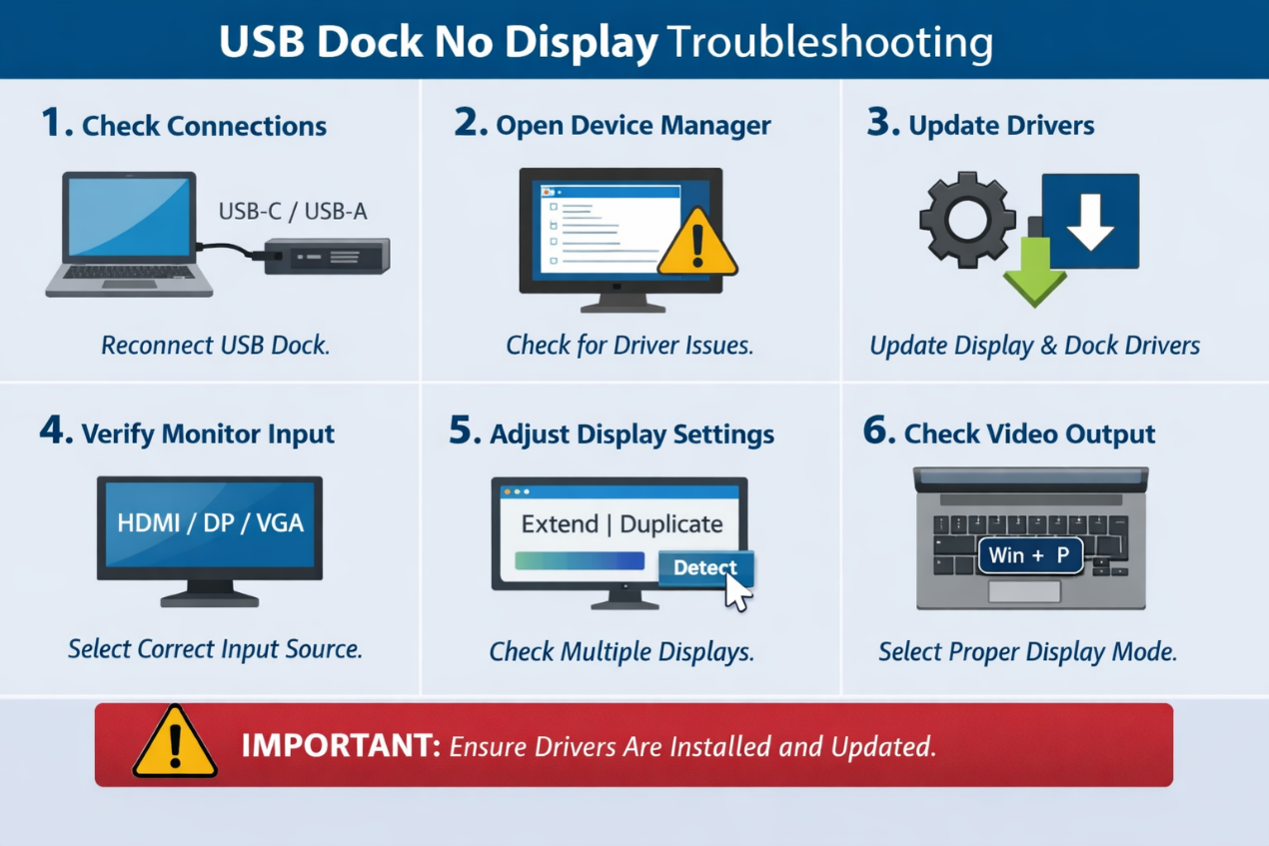
1. Confirm the USB Dock is connected correctly
- Unplug the USB Dock from the laptop, then reconnect it and confirm the device establishes a normal connection.
2. Check Windows Device Manager
- Open Device Manager and confirm that the USB Dock–related devices are recognized correctly.
- Check Display adapters, Universal Serial Bus controllers, Universal Serial Bus devices, or USB Display Adapter for a yellow exclamation mark (!) or Unknown Device.
- If you find any abnormalities, reinstall or update the corresponding drivers, then reconnect the USB Dock.
3. Update the graphics card and USB Dock drivers
- Confirm that the system has installed the latest graphics card driver and the USB Dock driver (for example, the DisplayLink driver).
4. Check the monitor’s input source
- Confirm the monitor is set to the correct input signal (HDMI, DisplayPort, or VGA).
5. Verify Windows display settings
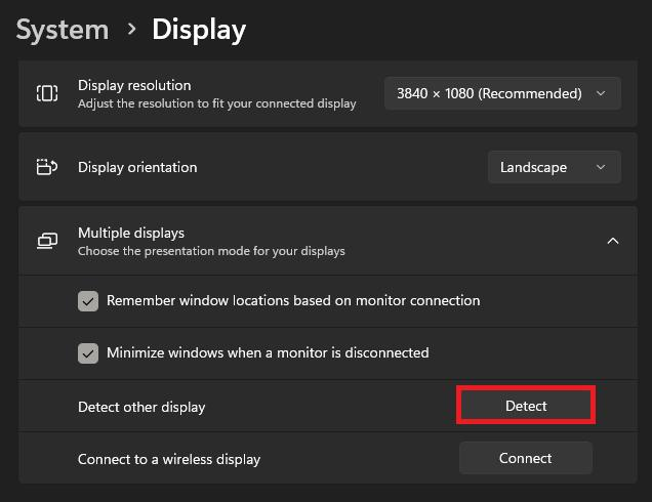
- Open Settings → System → Display.
- Select Detect and confirm whether Windows detects the external monitor.
- Under Multiple displays, choose the appropriate display mode (Extend, Duplicate, or Second screen only).
6. Confirm the laptop’s video output settings
- Press Windows + P to select the appropriate display mode.
- Some laptops may disable external video output. Check in system settings or BIOS to confirm that external display output is enabled.
Prev ›
What is the maximum input voltage for the DC jack located on the back of the U-760 SuperSpeed USB 3.0 Hub
USB & Desktop Connectivity
Next ›
After installing the PCIe USB expansion card, Windows Device Manager displays Code 10 – "This device cannot start", and connected USB devices cannot be used
USB & Desktop Connectivity