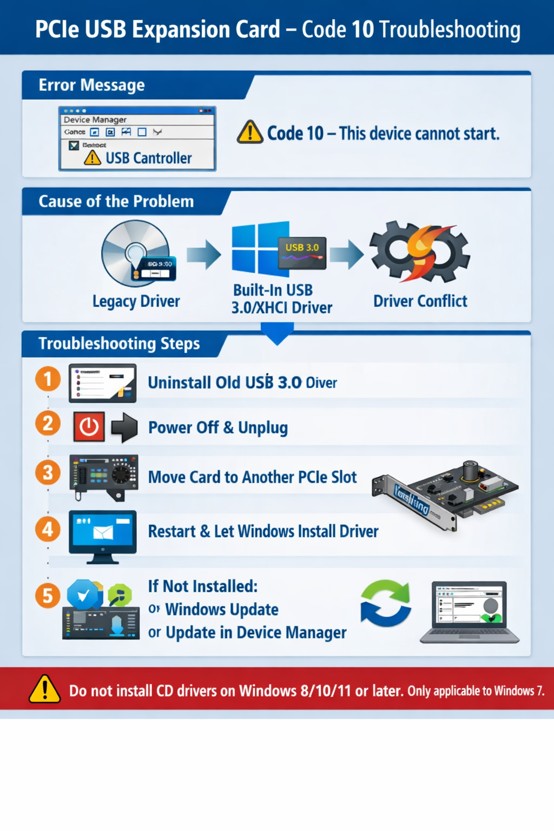
After installing the PCIe USB expansion card, Windows Device Manager displays Code 10 – "This device cannot start", and connected USB devices cannot be used
USB & Desktop Connectivity · Updated 2026/08/20
Q: After installing the PCIe USB expansion card, Windows Device Manager displays Code 10 – "This device cannot start", and connected USB devices cannot be used.
A: Windows 8, Windows 10, Windows 11, and later versions include native USB 3.0/xHCI drivers. Installing the driver from the bundled CD may overwrite the Microsoft inbox driver and cause driver conflicts, resulting in a Code 10 error.
Note: The driver provided on the bundled CD is intended for legacy operating systems such as Windows 7.
Please follow the steps below:
- Uninstall the USB 3.0 driver previously installed from the bundled CD.
- Shut down the computer and disconnect the power.
- Remove the PCIe USB expansion card and install it into another available PCIe slot.
- Reconnect the power and restart the system.
- Allow Windows to automatically detect the hardware and install the built-in USB driver.
If Windows does not install the driver automatically:
- Open Windows Update and install all available updates.
- Or open Device Manager, right-click the USB controller, and select Update driver to let Windows search for the latest compatible driver.